
PS4 Controller Troubleshooting: Common Issues and Fixes
Upload time :December 19, 2023
Shares
Reads
Are you tired of dealing with connectivity issues, sticky buttons, or charging difficulties with your PS4 controller? Look no further. We've compiled a list of the most common problems and provided step-by-step troubleshooting instructions for each issue. To fix connectivity issues, check the connection between the controller and console or reset the controller. For sticky buttons, clean them thoroughly to ensure they're not obstructed. If your controller isn't responding, try resetting it or updating its firmware. Lastly, for charging difficulties, replace the battery or purchase a replacement controller altogether. By following these easy fixes, you'll be back to playing your favorite games on your PS4 in no time!
Common Issues
Connectivity Issues
One of the most common problems faced by PS4 controller users is connectivity issues. It often occurs when there are multiple wireless devices in the same area or if there are physical barriers between the controller and console. To resolve this problem, try resetting the controller or the console. Additionally, make sure that the controller is fully charged and that the firmware is up to date.
Button Sticking or Not Responding
Another prevalent issue is when buttons on the controller start sticking or not responding altogether. This could be due to dirt and debris getting stuck under the button or damage to the internal components. Try cleaning the affected area with a soft cloth or compressed air. If that does not fix the problem, consider replacing the faulty component or seek professional help.
Charging Difficulties
PS4 controllers need to be charged regularly, and charging difficulties can be frustrating for gamers. The controller’s battery may not last as long as expected or may take longer than usual to charge. Ensure that the charging cable is plugged in properly and that the USB port is working correctly. If the issue persists, try using a different charging cable or charging port.
These common issues are easily preventable with proper care and maintenance of your PS4 controller. It is advisable to keep the controller clean, avoid unnecessary falls and impacts, and store it in a cool dry place. Additionally, regular software updates and following manufacturer guidelines can help extend the lifespan of your controller.
Troubleshooting Steps
Step 1: Reset the Controller
The first step in troubleshooting your PS4 controller is to reset it. To do this, you will need to locate the small reset button on the back of the controller. Using a paperclip or similar tool, press and hold the button for a few seconds until the lights on the front of the controller start flashing. Once the flashing stops, your controller should be reset, and you can try connecting it to your console again.
Step 2: Check the Connection Between the Controller and Console
If resetting the controller doesn't work, the next step is to check the connection between the controller and the console. Make sure that the USB cable you are using to connect the two is not damaged or frayed. If it is, replace the cable with a new one. Also, make sure that the USB port on your console is functioning correctly. Try plugging the cable into a different USB port to see if that solves the issue.
Step 3: Clean the Buttons
Sometimes, the buttons on your PS4 controller can become sticky or unresponsive due to dirt or other debris. To clean the buttons, use a clean, dry cloth to wipe them down. You can also use an alcohol wipe to disinfect the buttons. Be sure to let the controller dry completely before trying to use it again.
In addition to these steps, it's essential to keep your PS4 controller updated with the latest firmware. To check for updates, go to Settings -> Devices -> Controllers -> Update the Controller. This will ensure that your controller is running smoothly and free from any known bugs or glitches.
Fixes
One of the most common problems with PS4 controllers is connectivity issues. This issue arises when the controller cannot establish a stable connection with the console. The problem may be caused by interference from other wireless devices or due to outdated firmware. A quick fix to this issue is to move closer to the console or try resetting both the console and controller. Moreover, updating the controller's firmware is also recommended as it can often improve the overall performance of the controller.
Another issue that gamers face is button responsiveness. Over time, the buttons on the controller may become unresponsive or sticky, which can severely impact gameplay. The solution to this issue is to either clean the buttons or replace them altogether. If cleaning does not solve the issue, replacement buttons can be purchased online, and it is quite easy to replace them at home.
Battery life is another issue that affects many PS4 controller users. A low battery can lead to sudden shutdowns, which can be frustrating during gameplay. The easiest solution to this issue is to ensure that the controller is fully charged before starting any gaming sessions. Additionally, if you are experiencing battery issues frequently, it may be time to replace the battery entirely.
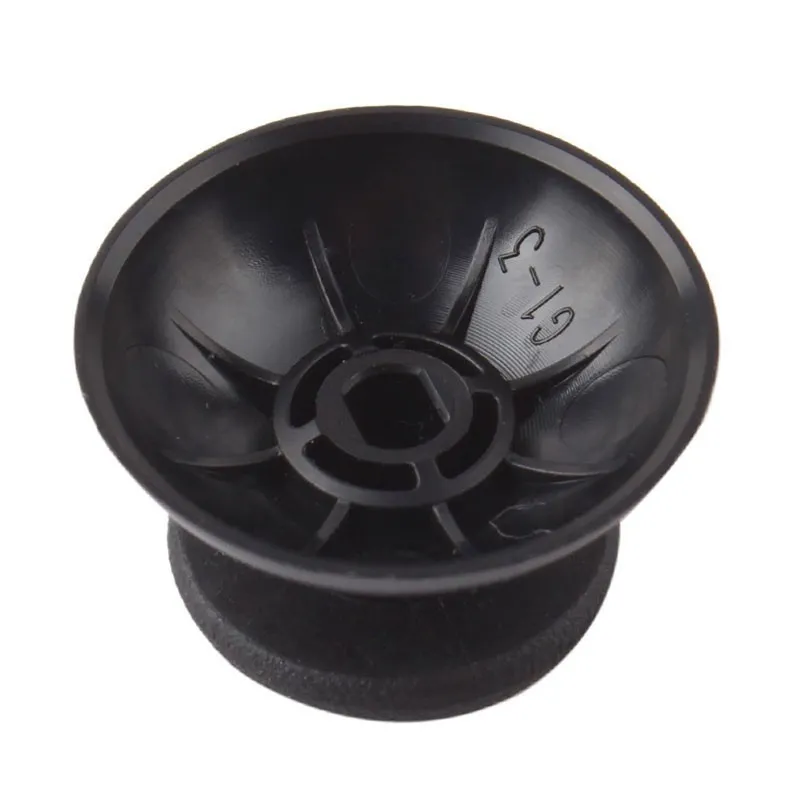
Lastly, analog stick drift is another commonly-reported issue seen on PS4 controllers. Analog stick drift is when the controller registers movement even when the stick is not being touched. This can lead to inaccurate aim or movement within game-play. The cause of this issue is usually due to dust buildup or wear and tear over time. Cleaning the controller regularly can prevent dust buildup from causing analog stick drift. If the issue persists, replacing the analog sticks is advised.
In conclusion, PS4 controllers are prone to various issues that can hinder the gaming experience. However, most of these issues can be fixed through simple solutions such as updating the firmware, replacing the battery, cleaning the buttons, or changing the analog sticks. These small fixes can go a long way in improving your gaming experience, and they don't require much technical knowledge or expertise. By keeping your controller maintained, you can ensure that it lasts longer and provides a seamless gaming experience for years to come.
FAQ
Q1. Why is my PS4 controller not charging?
A: There are a few potential reasons why your PS4 controller may not be charging. First, ensure that the USB cable you are using is fully functional and properly connected to both the controller and the console. If the cable is fine, try resetting the controller by pressing the small reset button on the back with a paperclip or similar tool. If all else fails, the battery in your controller may be dead and need replacement.
Q2. Why is my PS4 controller drifting?
A: Controller drift occurs when the analog sticks on your PS4 controller start registering movement even when they aren't being touched. This can be caused by a number of factors, including dust or debris interfering with the sensors. To fix this issue, try cleaning the analog sticks with compressed air or a soft-bristled brush. You may also need to recalibrate your controller by going into the settings menu on your console and selecting "Devices" followed by "Controllers". From there, select your controller and choose "Adjust Analog Sticks".
Q3. How do I fix sticky buttons on my PS4 controller?
A: Sticky buttons are a common issue for PS4 controllers, and they can be caused by anything from spilled drinks to wear and tear over time. To fix this problem, you'll need to open up your controller and clean the buttons thoroughly with rubbing alcohol and a cotton swab. Be sure to let the buttons dry completely before reassembling your controller.
Q4. Why is my PS4 controller not connecting to my console?
A: There are a couple of reasons why your PS4 controller may not be connecting to your console. First, ensure that the controller is turned on and within range of the console. If it still won't connect, try resetting your controller by pressing the tiny reset button on the back. If your controller still won't connect, it's possible that your Bluetooth connection is faulty. Try turning off any other Bluetooth devices in the room and moving closer to the console. If none of these solutions work, you may need to replace your controller or your console's Bluetooth module.
Buy Now
See More: Wholesale Products
Recommended related content
Troubleshooting Common Fish Aerator Problems and How to Fix Them
ips for Troubleshooting Common Candle Wick Issue
How to Troubleshoot Common Issues with Samsung Note S8
