
10 Must-Try Tips and Tricks for Maximizing Your PS4 Controller's Potential
Upload time :August 26, 2023
Shares
Reads
Are you looking to take your gaming experience to the next level? Customizing your PS4 controller can make a huge difference! This article will show you how to customize the button layout and sensitivity, as well as take advantage of advanced settings and built-in features such as touchpad, motion sensors, and speaker. We'll also recommend accessories that can enhance gameplay and troubleshoot common issues you may face with your controller. By the end, you'll have all the tools you need to optimize your gaming experience and dominate the competition. So why settle for a standard controller when you can create one that's perfectly tailored to your needs?
Customizing Your Controller
As a gamer, the controller you use is just as important as the game itself. It’s the physical connection between you and the virtual world that you’re exploring. So why settle for a one-size-fits-all approach when it comes to your controller? With the PlayStation 4, you have the option to customize your controller in a variety of ways to enhance your gaming experience. Here’s a guide on how to customize the button layout and sensitivity of your controller, as well as the benefits of doing so.
Customizing the Button Layout
The default button layout on a PS4 controller works fine for most games, but what if you want to switch things up? Perhaps you’d like to swap the location of the X and O buttons to match the layout of a Nintendo console. Or maybe you’d like to map certain actions to the touchpad or another button altogether. Whatever your preference may be, you can customize the button layout of your controller by going into the Settings menu on your PS4. From there, select Accessibility > Button Assignments. You can then reassign any button on the controller to perform a different action or function. This feature is particularly useful for gamers with disabilities who may find the default button layout difficult to use.
Customizing Sensitivity
Another way to customize your controller is by adjusting the sensitivity of the thumbsticks and triggers. By default, the sensitivity settings are set to a medium level, but you can increase or decrease the sensitivity to better suit your needs. For example, if you’re playing a first-person shooter and find that your aim isn’t as precise as you’d like it to be, you can increase the sensitivity of the right thumbstick to make small adjustments more quickly. Similarly, if you’re playing a racing game and find that you’re constantly oversteering, you can decrease the sensitivity of the triggers to make them less sensitive to your inputs. To adjust the sensitivity of your controller, go to the Settings menu on your PS4 and select Devices > Controllers > Adjust Analog Sticks or Adjust Trigger Sensitivity.
Benefits of Customizing Your Controller
Customizing your controller isn’t just about personal preference; it can also give you a competitive advantage. By adjusting the sensitivity of your thumbsticks and triggers, you can improve your accuracy and reaction time, making it easier to hit your targets or avoid obstacles. Similarly, by customizing the button layout, you can streamline your gameplay and reduce the chances of accidentally hitting the wrong button. In addition to these practical benefits, customizing your controller can also make your gaming experience more enjoyable. After all, gaming is supposed to be fun, and playing with a controller that feels tailored to your preferences can enhance that experience.
Using Advanced Controller Settings
One of the key features of the PS4 controller is its ability to remap buttons, allowing you to change the function of any button to better suit your playstyle. This can be particularly useful for games that require quick reflexes, as it allows you to place commonly used functions within easy reach of your fingers. To access this feature, go to Settings > Accessibility > Button Assignments.
Another advanced setting worth exploring is the sensitivity of the controller’s analogue sticks. By adjusting the sensitivity, you can fine-tune the movement of your character or camera, making it easier to aim or move around. This can be accessed by going to Settings > Devices > Controllers > Stick Sensitivity.
For those looking to take their gameplay to the next level, the PS4 also offers the option to adjust the deadzone of the analogue sticks. The deadzone refers to the minimum distance the stick needs to be moved before the game registers any input. By reducing the deadzone, you can make your movements more precise and reduce any lag between your actions and the in-game response. To adjust the deadzone, head to Settings > Devices > Controllers > Deadzone.
Finally, the PS4 also offers a range of accessibility options for players with disabilities or limitations. These include options such as button assignments, vibration intensity, and even text-to-speech functionality. To access these settings, go to Settings > Accessibility, where you will find a range of options to suit your needs.
Taking Advantage of Built-in Features
- Examples of games that make good use of these features
As a PS4 controller consumer, it’s important to know how to take advantage of the built-in features in your controller. While many gamers may overlook the touchpad, motion sensors, and speaker, these features can actually enhance gameplay and provide a more immersive experience.
One of the most notable features of the PS4 controller is the touchpad. This versatile tool serves as both a button and a touch-sensitive surface that can be used for a variety of functions in different games. For example, in games like “Infamous Second Son,” players can swipe up on the touchpad to activate a special power. In “The Last of Us Part II,” players can use the touchpad to access Ellie’s backpack and select items without having to pause the game.
The motion sensors in the PS4 controller are another feature that can add depth to gameplay. The accelerometers and gyroscopes inside the controller allow for more intuitive controls in games that require movement, such as racing or first-person shooter games. Players can tilt the controller left or right to steer a vehicle or aim their weapon, making for a more immersive and interactive experience.
Finally, the speaker on the PS4 controller can also provide a unique element to gameplay. Games like “Uncharted 4” use the speaker to add ambient sound effects, such as the sound of water or birds chirping in the background. It can also be used for more practical purposes, such as providing audio cues for in-game events, like when a player picks up a new item.
By utilizing these built-in features, players can enhance their gaming experience and get more out of their PS4 controllers. Not only do these features add a new level of interactivity to games, but they also provide a more immersive experience that can make even the most mundane tasks feel exciting.
For example, games like “Until Dawn” use the motion sensors and touchpad to create a more intense horror experience. Players must hold the controller steady during certain scenes to avoid detection from enemies, while also using the touchpad to navigate through menus and make choices that impact the story.
Improving Gameplays with Accessories
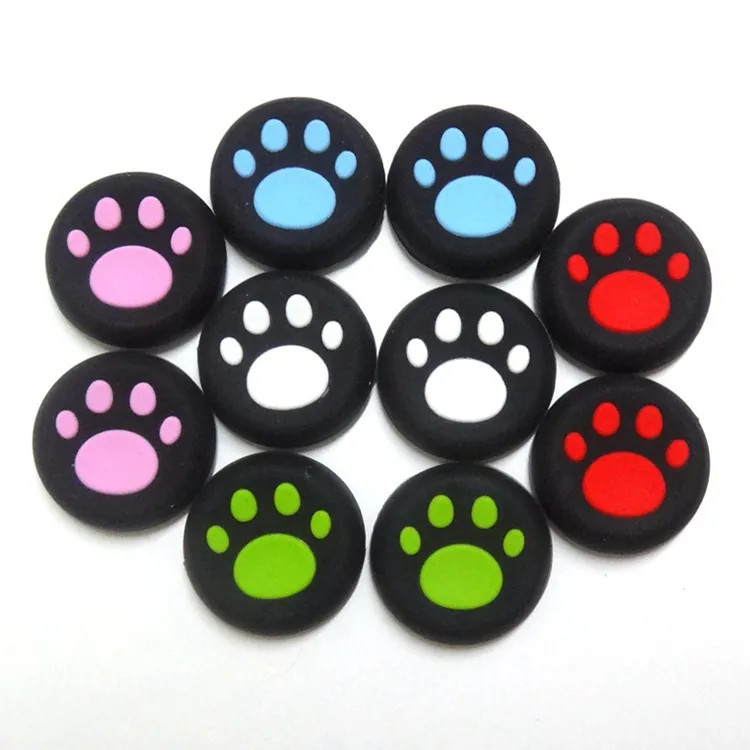
One of the main reasons why people use accessories is to improve their gameplay. For example, if you are playing a first-person shooter game, having a good controller can make all the difference. A controller with better grip and more responsive buttons can help you aim more accurately and move around the map more quickly.
Another way that accessories can improve gameplay is by providing additional features that are not available in the standard controller. For example, some controllers have programmable buttons that allow you to map certain functions to them, such as reloading your weapon or switching between weapons quickly. This can give you an edge over other players who don't have these features.
Apart from controllers, there are many other accessories that can help improve your gaming experience. Headsets, for example, can provide better audio quality and noise cancellation, allowing you to hear important in-game sounds such as footsteps and gunshots more clearly. This can be especially useful in games where sound plays a crucial role, such as horror games.
Other accessories such as gaming chairs and desks can also improve your gaming experience by providing better ergonomics and comfort. A good gaming chair can help reduce back pain and improve your posture, while a gaming desk can provide more space for your monitor, keyboard, and other accessories.
When it comes to choosing accessories to enhance your gameplay, it's important to consider your personal preferences and budget. While some accessories may be more expensive than others, they may also provide more features and better quality. It's also important to choose accessories that are compatible with your gaming setup and platform.
Troubleshooting Common Issues
One of the most common issues gamers face with their PS4 controller is unresponsive or sticky buttons. This can be caused by debris or dirt accumulating under the button, making it difficult for the button to register a press. To fix this issue, simply remove the button cover and clean the area underneath with a soft-bristled toothbrush or compressed air. Once the area is clean, reassemble the button cover and test the button to ensure it's working properly.
Another issue that can arise with your PS4 controller is connectivity problems. If your controller is not connecting to your console, the first step is to ensure that the controller is fully charged and turned on. If the controller is still not connecting, try resetting the controller by pressing the small reset button located on the back of the controller. If this doesn't work, try connecting the controller using a USB cable to see if that resolves the issue.
If you're experiencing poor battery life with your PS4 controller, there are a few things you can do to improve it. First, make sure that your controller is fully charged before use. If you notice that your battery life is draining quickly, adjust the brightness of your controller's light bar or disable vibrations to conserve battery life. Additionally, turning off your controller when not in use can help extend the battery life.
For those who experience drift in their analog sticks, which means that the character moves even when the stick isn't being touched, this can also be fixed through calibration. To calibrate your controller, go to settings and select “Devices” then "Controllers." From there, select “Adjust Analog Sticks” and follow the prompts until the calibration process is complete.
In conclusion, troubleshooting common issues with your PS4 controller does not have to be a complicated process. By following these simple tips, you can easily fix many of the problems that can occur with your controller. If you’re still having trouble after trying these solutions, consider reaching out to Sony customer support for further assistance. Remember, taking care of your PS4 controller will not only improve its performance, but it will also enhance your overall gaming experience.
FAQ
Q1. What are some essential tips for maximizing the potential of my PS4 controller?
Some essential tips for maximizing your PS4 controller's potential include customizing the controller settings, utilizing the touchpad, and using the headphone jack for audio output. You can also try remapping buttons to suit your preferences and use a grip case for added comfort.
Q2. How do I customize my PS4 controller settings?
To customize your PS4 controller settings, go to the "Settings" tab on your console's home screen and select "Devices." From there, select "Controllers," and you'll be able to adjust settings such as button assignments, vibration intensity, and motion sensitivity.
Q3. Can I use my PS4 controller with other devices besides my console?
Yes, you can use your PS4 controller with other devices such as your PC or Mac. To do so, download the DS4Windows software, connect your controller to your computer via USB or Bluetooth, and follow the prompts to set it up.
Q4. What are some advanced tricks for using my PS4 controller?
Some advanced tricks for using your PS4 controller include using the gyroscope for precise aiming in games, using the touchpad as a mouse, and using the "Share" button to capture screenshots and videos. You can also use the PlayStation App to control your console remotely and view your gaming activity.
 Buy NowSee More: Wholesale Products
