
How to Connect and Set Up Your Wireless Keyboard in Minutes
Upload time :August 31, 2023
Shares
Reads
Wireless keyboards offer convenience and flexibility, but setting them up can be tricky. Before beginning setup, check compatibility with your device, ensure batteries are installed correctly, and turn on the keyboard. Connecting the keyboard involves putting your device in pairing mode, pressing the connect button, and entering necessary codes or passwords. If you encounter common issues like connectivity problems or input settings, troubleshoot by resetting the keyboard or restarting your device. With these steps, you'll enjoy the benefits of a wireless keyboard in no time.
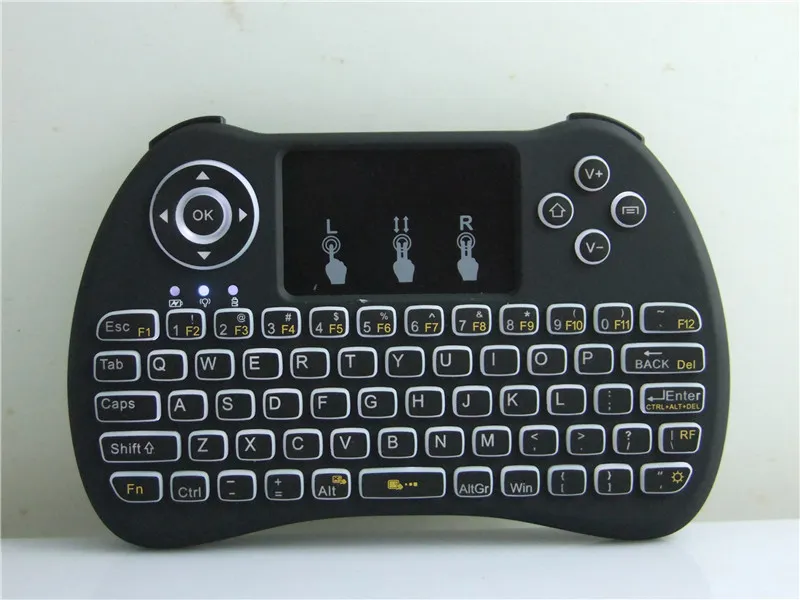 Buy NowSee More: Wholesale Products
Preparing for setup
The first step is to check the compatibility of your device with the wireless keyboard. Most wireless keyboards are compatible with both Windows and Mac operating systems, but it's always best to double-check before making a purchase. You can usually find this information on the packaging or on the manufacturer's website.
Once you have confirmed compatibility, the next step is to ensure that the batteries are installed correctly. Most wireless keyboards require two AA or AAA batteries, which are typically not included in the package. Make sure to insert the batteries according to the instructions provided, paying close attention to the correct polarity. If the batteries are not installed correctly, the keyboard will not work.
After installing the batteries, make sure to turn on the keyboard. Most wireless keyboards have a power button located somewhere on the device. Press and hold the power button until the LED light on the keyboard starts blinking. This indicates that the keyboard is ready to pair with your device.
To connect the keyboard to your device, you will need to use Bluetooth technology. On your computer, navigate to the Bluetooth settings and turn on Bluetooth. Then, search for available devices and select the wireless keyboard from the list of options. Follow the prompts on the screen to complete the pairing process.
Once the keyboard is paired, it should start working immediately. Test out the keys to make sure everything is functioning properly. If any keys aren't working, try re-pairing the keyboard or replacing the batteries.
Connecting the keyboard
First, make sure that your device has Bluetooth capabilities. Most modern devices such as laptops, tablets and smartphones come with Bluetooth built-in, but it’s always best to double-check before purchasing a keyboard. If your device doesn’t have Bluetooth, you may need to purchase a Bluetooth dongle to enable this feature.
Next, turn on your wireless keyboard. There should be an on/off switch located somewhere on the keyboard, usually on the bottom or side. Press the switch to turn on the keyboard.
Now, put the keyboard in pairing mode. This allows your device to recognize and connect to the keyboard. The exact process for putting your keyboard in pairing mode will depend on the manufacturer and model, so consult the user manual for instructions. In general, you will need to press and hold a button on the keyboard for a few seconds until a light starts flashing, indicating that the keyboard is now in pairing mode.
Once your keyboard is in pairing mode, it’s time to connect it to your device. Open up the Bluetooth settings on your device and search for available devices. Your keyboard should appear in the list of available devices. Select the keyboard and click “connect”.
If prompted, enter any necessary codes or passwords. Some wireless keyboards require a code to be entered for security purposes. This code should be provided in the user manual or on a sticker on the keyboard itself.
After entering the code, your device should be successfully paired with your wireless keyboard. You can now start typing away without the constraint of wires.
Troubleshooting common issues
Connectivity Issues
One of the most common issues users face when setting up a wireless keyboard is connectivity issues. If your keyboard is not connecting to your computer or device properly, there are several things you can try. Firstly, ensure that your keyboard is turned on and in range of your device. If it still won’t connect, try resetting the connection by turning off both devices and then turning them back on again. If this does not work, check if the batteries in your keyboard need replacing.
Incorrect Input Settings
Another issue users may encounter is incorrect input settings. Ensure that you have selected the correct input method for your keyboard; for instance, if you have a QWERTY keyboard, select the QWERTY input option on your device. This can be especially important when using non-English layouts, such as AZERTY or QWERTZ.
Dead Keys or Sticky Keys
Dead keys or sticky keys are another frustrating issue that users may experience with their wireless keyboards. Dead keys occur when certain keys do not register when pressed, while sticky keys happen when keys register more than once when pressed. To fix these issues, try cleaning your keyboard with a soft cloth or compressed air to remove dust or debris. Additionally, check if any keys are stuck or damaged.
Battery Life
Finally, battery life can also be an issue for wireless keyboard users. While most wireless keyboards come with batteries pre-installed, they will eventually run out of power. When this happens, replace the batteries with fresh ones. To extend battery life, consider turning off your keyboard when not in use or using rechargeable batteries.
Conclusion
In conclusion, wireless keyboards offer a convenient and flexible way to work, but like any technology, they can sometimes experience issues during setup. Connectivity issues, incorrect input settings, dead keys, and battery life can all cause frustration for users. However, by following the solutions outlined above, users can troubleshoot these problems and get back to being productive with their wireless keyboard.
FAQs:
Q1. Q: How do I connect my wireless keyboard to my computer?
A: To connect your wireless keyboard to your computer, first, make sure that both the keyboard and the computer have batteries. Then turn on the keyboard and put it in pairing mode by pressing the pairing button or following the instructions on the keyboard. On your computer, go to the Bluetooth settings and search for available devices. Find your keyboard and click on "connect". Follow the prompts to complete the pairing process.
Q2. Q: How do I know if my wireless keyboard is connected correctly?
A: Once you've successfully paired your wireless keyboard with your computer, you should see a notification on your screen that says "connected" or "paired". You can also test if your keyboard is working properly by typing something into a document or searching for something on your computer. If you're still not sure if your keyboard is connected correctly, try restarting your computer and checking again.
Q3. Q: My wireless keyboard is not working, what should I do?
A: If your wireless keyboard is not working, try the following troubleshooting steps: 1) check if the batteries are inserted correctly and have enough power; 2) make sure that the keyboard is turned on and in pairing mode; 3) check if the keyboard is within range and there are no obstacles blocking the signal; 4) restart your computer and try reconnecting the keyboard. If none of these steps work, you may need to replace the batteries or contact customer support for further assistance.
Q4. Q: Can I use my wireless keyboard with multiple devices?
A: Yes, most wireless keyboards can be paired with multiple devices, such as computers, tablets, and smartphones. However, you may need to disconnect the keyboard from one device before pairing it with another. To switch between devices, you can usually press a button or follow the instructions in the user manual. Keep in mind that some keyboards may have limited compatibility with certain devices or operating systems, so always check the specifications before purchasing.
