
5 Must-Have Accessories for Your New MacBook 15
Upload time :December 19, 2023
Shares
Reads
As a MacBook 15 consumer, protecting your device is essential. Protective cases are a simple yet effective way to guard against scratches and damage. There are various types available, from hard-shell cases to sleeves, all offering different levels of protection. Similarly, USB-C adapters are necessary to connect with other devices, but the options may seem overwhelming. However, choosing one that suits your needs is made easier by understanding the functions of each type. Docking stations make working on your MacBook 15 even more convenient, allowing for multiple device connections. Different models come equipped with varying features such as extra ports or charging capabilities. Wireless headphones offer an advantage in terms of mobility and convenience, and there are many types to choose from, such as earbuds and over-ear headphones. Finally, external hard drives provide added storage space for data and files. Various types exist, including portable and desktop versions. By selecting a reliable and spacious option, you can avoid losing valuable information.
Protective Cases
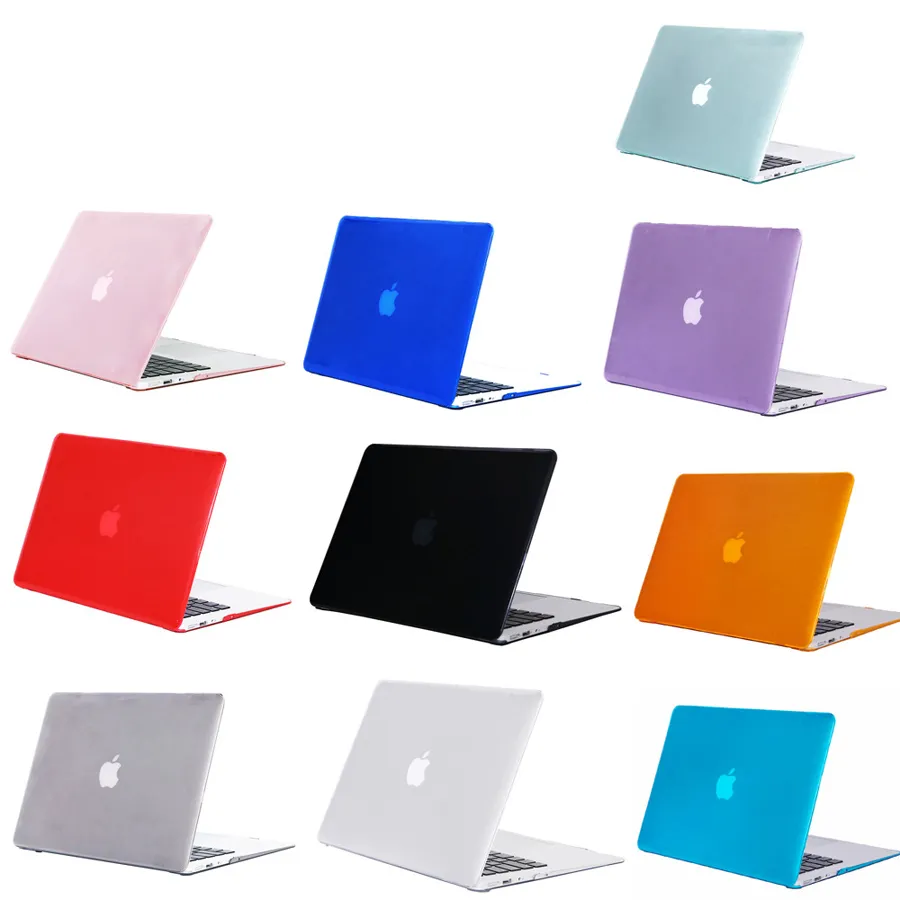
Protective cases are an indispensable accessory for any MacBook 15 user as they safeguard the device from scratches, bumps, and impact damage. They also help keep the laptop free from dust and debris, ensuring optimal performance over an extended period.
There are different types of protective cases available in the market, each with its unique features and benefits. Hardshell cases are one of the most popular options and provide excellent protection against physical damage. These cases are made of polycarbonate material that fits snugly around the MacBook 15, protecting it from scratches, drops, and other impacts.
Other types of protective cases include sleeves, folios, and skins. Sleeves are soft, padded pouches that encase the MacBook 15 entirely, providing protection during transportation. Folios, on the other hand, are thicker than sleeves and come with additional pockets for storing accessories such as power adapters, cables, and mice. Skins are thin, adhesive coverings that add an extra layer of protection while allowing access to all ports and buttons.
When choosing a protective case for your MacBook 15, it is crucial to consider durability, functionality, and design. Some popular and durable protective cases include the Incase hardshell case, MOSISO sleeve, and Thule Gauntlet. The Incase hardshell case offers complete protection against scratches and scuffs and comes in a sleek design that complements the MacBook 15's aesthetics. The MOSISO sleeve is made of water-repellent neoprene material and provides excellent shock absorption, making it ideal for outdoor use. The Thule Gauntlet is a rugged, weather-resistant case designed to withstand extreme conditions, making it perfect for users who frequently travel or work in harsh environments.
USB-C Adapters
If you own a MacBook 15, you probably love its sleek design and performance. However, as much as we want to rely solely on our laptops, there are times when we need to connect them to other devices. This is where USB-C adapters come in handy.
Why do we need USB-C adapters?
The MacBook 15 only has four Thunderbolt 3 ports, all of which use the USB-C connector. Although this port is versatile and supports multiple protocols like HDMI, DisplayPort, and Ethernet, it can be frustrating when you have to connect your laptop to other devices that don't have the same port. For example, if you want to connect your MacBook 15 to an external display or a projector, you will need an adapter that converts the USB-C port to HDMI or VGA.
Types of USB-C adapters
1. USB-C to HDMI Adapter: This adapter allows you to connect your MacBook 15 to an external display or TV with an HDMI port. This is particularly useful for presentations or watching movies on a big screen.
2. USB-C to VGA Adapter: This adapter is similar to the HDMI adapter, but it's used for older displays or projectors that don't have an HDMI port.See More: The Top 5 Mini Projectors for Movie Nights at Home
3. USB-C to Ethernet Adapter: If you need to connect to a wired network, this adapter will enable you to do so. It's especially useful for people who work in offices or institutions that require a wired connection.
4. USB-C to USB-A Adapter: This adapter lets you connect USB-A devices like flash drives, printers, and cameras to your MacBook 15. It's also useful for charging your smartphone or tablet.See More: CCTV vs. IP Cameras: Which is Better for Your Surveillance Needs?
5. USB-C Hub: A hub is a more versatile adapter that has multiple ports for different types of devices. For example, a USB-C hub could have HDMI, VGA, Ethernet, and USB-A ports. This is ideal for people who need to connect multiple devices to their MacBook 15 at once.
Reliable and cost-effective USB-C adapters
When buying a USB-C adapter, it's essential to choose a reliable brand to avoid compatibility issues or damage to your device. Some of the most trusted brands include Apple, Belkin, Anker, and HyperDrive. These brands offer high-quality adapters that are built to last and provide excellent performance.
In terms of cost, USB-C adapters can range from $10 to $100 depending on the type and brand. It's important to find a balance between affordability and quality. You don't want to buy a cheap adapter that might cause damage to your MacBook 15 or the device you're connecting it to.
Docking Stations
As a MacBook 15 user, you are already familiar with its sleek design, powerful performance, and portability. However, when it comes to connecting multiple peripherals and external displays, you may find yourself struggling with limited ports and cables cluttering your workspace. This is where docking stations come in handy, offering a convenient and versatile solution to expand your MacBook's connectivity and productivity.
Docking stations are devices that allow you to connect your MacBook 15 to a range of external devices, such as monitors, keyboards, mice, printers, speakers, and USB drives, through a single cable. They typically feature a variety of ports, including HDMI, DisplayPort, VGA, Thunderbolt, Ethernet, USB-A, and USB-C, depending on the model and brand. By plugging your MacBook into a docking station, you can streamline your workflow, save time and energy, and enhance your multimedia experience.
One of the main benefits of using a docking station with MacBook 15 is convenience. Instead of constantly plugging and unplugging cables from your MacBook's ports, you can simply connect one cable to the docking station and have all your peripherals up and running. This not only reduces wear and tear on your MacBook's ports but also saves you from the hassle of finding the right cable or adapter for each device. Moreover, docking stations can also recharge your MacBook's battery while connected, eliminating the need for separate chargers or power outlets.
Another advantage of docking stations is versatility. Depending on your needs and preferences, you can choose from a wide range of docking stations with different features and capabilities. For example, some docking stations are designed for dual or triple display setups, allowing you to extend or mirror your MacBook's screen to multiple monitors at once. This can be especially useful for video editing, gaming, or multitasking. Other docking stations may focus on high-speed data transfer, enabling you to transfer large files, stream media, or backup your data quickly and securely.
When it comes to choosing a docking station for MacBook 15, there are several factors to consider. These include the number and type of ports, the compatibility with your MacBook's model and operating system, the brand reputation and customer support, and the price and warranty. To help you make an informed decision, here are some popular and versatile docking stations that are worth considering:
1. CalDigit TS3 Plus - a top-rated Thunderbolt 3 docking station with 15 ports, including dual 4K DisplayPort, HDMI, Gigabit Ethernet, USB-A, USB-C, and SD card reader. It also supports up to 85W power delivery and daisy-chaining up to five additional Thunderbolt devices.
2. Henge Docks Stone Pro - a sleek and stylish USB-C docking station with 11 ports, including dual 4K HDMI, DisplayPort, Gigabit Ethernet, USB-A, and SD card reader. It also features a Kensington Lock slot and a vertical stand for space-saving.
3. Plugable UD-6950H - a budget-friendly docking station with dual HDMI and DisplayPort, Gigabit Ethernet, six USB-A, and audio in/out. It supports up to 5K resolution and can connect up to three displays simultaneously.
Wireless Headphones
Wireless headphones offer freedom of movement because they don't require a cord to connect to your MacBook 15. This means you can move around more freely without worrying about getting tangled up in cords or pulling out your earbuds accidentally. Additionally, some newer models of wireless headphones allow users to connect to multiple devices at once, which comes in handy if you want to switch between your MacBook 15 and smartphone, for example.
There are different types of wireless headphones, such as on-ear, over-ear, and in-ear. On-ear headphones sit on your ears while over-ear headphones completely cover them. In-ear headphones fit directly into your ear canal and create a seal to block outside noise. Each type has its own advantages and disadvantages, so it's important to choose the one that suits your needs best. For example, on-ear headphones are great for exercise because they're lightweight and don't get too hot, while over-ear headphones provide better sound isolation and are ideal for long listening sessions.
When it comes to choosing high-quality and comfortable wireless headphones for use with your MacBook 15, there are several options to consider. Some top brands include Bose, Sony, and Apple themselves. Bose QuietComfort 35 II and Sony WH-1000XM4 are two popular over-ear headphones that offer excellent noise cancellation and sound quality. Apple's AirPods Pro are great in-ear headphones that work seamlessly with all Apple devices, including the MacBook 15. They also feature active noise cancellation and improved sound quality compared to their predecessors.
Another important consideration when choosing wireless headphones is comfort. It's essential to select headphones that are comfortable enough for extended wear, especially if you plan on using them for long listening sessions or while traveling. Bose QuietComfort 35 II and Sony WH-1000XM4 both have soft padding and adjustable headbands, making them comfortable to wear for long periods. Apple's AirPods Pro come with three different sizes of ear tips, ensuring a secure and comfortable fit for individual users.
External Hard Drives
External hard drives come in various types, such as Solid State Drives (SSDs), Hard Disk Drives (HDDs), and Hybrid Drives. SSDs are faster and more efficient than HDDs, but they come at a higher price point. On the other hand, HDDs are economical but heavier and slower in speed. Hybrid drives combine both SSDs and HDDs to deliver a balance between speed and cost-effectiveness.
When selecting an external hard drive, it is essential to consider factors such as storage capacity, transfer speed, and compatibility. For instance, if you deal with large media files or want to use the external hard drive as a backup option, then opting for a high storage capacity drive is recommended. Similarly, if you plan to transfer files frequently, then choosing a drive with high transfer speed will save you time and effort.
Some reliable and spacious external hard drives that MacBook 15 consumers can consider include the Western Digital My Passport Ultra, Seagate Backup Plus Slim, and Samsung T5 Portable SSD. The Western Digital My Passport Ultra offers up to 5TB of storage capacity and comes with USB-C and USB-A cables for convenience. The Seagate Backup Plus Slim has a sleek design and provides up to 5TB of storage capacity. Lastly, the Samsung T5 Portable SSD is lightweight and fast, offering up to 2TB of storage capacity.
In conclusion, external hard drives are a valuable investment for MacBook 15 consumers who require additional storage space and want to keep their data and files safe. Understanding the different types of external hard drives and considering factors such as storage capacity, transfer speed, and compatibility can help you make an informed decision when purchasing an external hard drive. Some reliable and spacious options include the Western Digital My Passport Ultra, Seagate Backup Plus Slim, and Samsung T5 Portable SSD.See More: What are the Best External Hard Drives for Gaming?
Buy Now
See More: Wholesale Products
FAQ
Q1. What are the five must-have accessories for my new MacBook 15?
Answer: The five must-have accessories for your new MacBook 15 are a USB-C hub, a protective case, a privacy screen filter, a wireless mouse, and a comfortable laptop stand.
Q2. What is a USB-C hub and why do I need it for my MacBook 15?
Answer: A USB-C hub is an accessory that expands the connectivity options of your MacBook 15 by providing additional ports like USB-A, HDMI, SD card reader, and Ethernet. It is essential for users who need to connect various peripherals simultaneously without compromising speed and security.
Q3. Do I really need a protective case for my MacBook 15?
Answer: Yes, you do! A protective case helps shield your MacBook 15 from scratches, scuffs, and accidental drops. It also preserves the aesthetic appeal of your device and extends its lifespan. Investing in a quality case is a smart decision that saves you money and stress in the long run.
Q4. What is a privacy screen filter and how does it work with my MacBook 15?
Answer: A privacy screen filter is an accessory that protects the sensitive information on your MacBook 15 from prying eyes by blocking lateral viewing angles. It works by using micro-louver technology that darkens the screen when viewed from the side. This feature is ideal for people who work in public places or travel frequently and want to safeguard their privacy.
Q5. Why should I use a wireless mouse with my MacBook 15 instead of the trackpad?
Answer: Using a wireless mouse with your MacBook 15 offers several advantages over the built-in trackpad, including improved precision, comfort, and ergonomics. It also reduces hand fatigue and prevents repetitive strain injuries associated with prolonged use of the trackpad. A wireless mouse is a worth-while investment that enhances your productivity and computing experience.
Recommended related content
What are the must-have western accessories for your outfit?
Why Cooler Tubes are the Must-Have Accessory for Your Next Outdoor Adventure
The Top 5 Must-Have Pieces for Your Bong
What are the must-have kitchen accessories for a modern home?
